Make midi keyboard recorder part of your practice
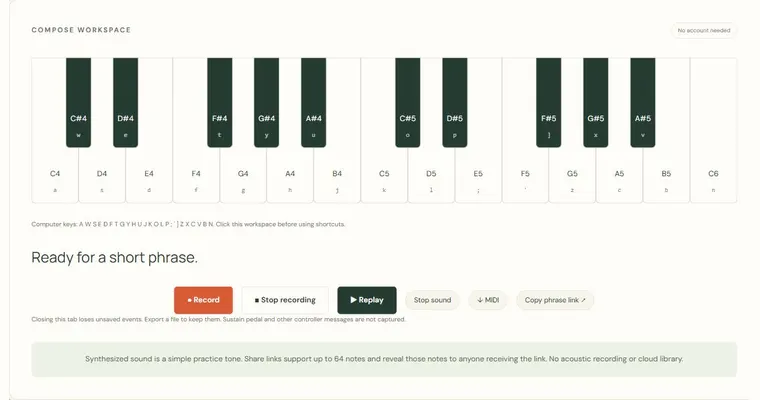
The MIDI keyboard recorder captures note events from a connected MIDI input device, so you can review and replay what you played. It stores note-on and note-off events with durations and channels, not acoustic audio. Use it at a physical MIDI keyboard connected to your computer; the browser recorder itself does not listen through the microphone.
What the recording contains
The recorder keeps note pitches, onset times, durations, channels and note-on velocities. Playback is a local synthesized rendering; it does not capture your keyboard’s instrument sound, microphone audio, pressure, pedal or controller automation. A MIDI export preserves note timing and velocity as event data rather than an audio performance. The export-tempo field determines the MIDI beat grid while recorded real-time spacing is retained.
Why compare note order and durations
Two phrases can share the same pitches and still sound different if their durations differ. A quarter note lasts one beat in 4/4, a half note two beats and a whole note four beats. A rest is silence of a given length, so a phrase with a missing rest will shift every later note. Replaying the recording lets you check whether each note held as long as intended and whether the gaps between notes match your target rhythm. Comparing against a repeated phrase, by note order and durations, shows drift that is hard to hear while playing.
Keeping your results
Playback and export depend on what happens in the current browser tab. Export writes a Standard MIDI File containing your note events. Download a copy before closing or reloading the tab, because the recording is not kept as a cloud library. Recording stops automatically at five minutes.
Try it step by step
- Choose Connect MIDI input, grant permission if you want to use it, select an available input and set Export tempo (BPM). Device and browser support vary; permission alone does not guarantee that a keyboard is connected.
- Press Record, play a short phrase with a clear quarter-note pulse, and press Stop when finished.
- Replay the take and compare each note's order and duration against your target, noting any rests that came out too short or long.
- Export the note events as a MIDI file and download it before closing or reloading the tab.
A concrete example
At 60 beats per minute, play C4, E4, G4 as quarter notes with no rests. E4 is four semitones above C4 and G4 is seven semitones above C4, forming a C major triad. Each note should last about one second, with note-on events spaced one second apart.
A common wrong turn
Assuming the recorder captures microphone audio or acoustic tone, and judging your piano sound from the replay.
Try this instead: Treat the recording as a list of note events. Check pitch and timing here, and evaluate tone and touch on your instrument itself.
Where to go next — and why
This guide was drafted with Claude Haiku and edited against this tool’s implemented controls. Report a confusing instruction or incorrect example.